 Picking An Order
| Document Version | v.1 |
|---|---|
| Document Last Updated | 9/22/23 |
| Software Version Documented | v.9.9.2 |
Picking a Sales Order
In this section we will cover how to pick items for an order that has items allocated and available to be picked.
Find your Sales Order to Pick
-
The first thing you might know that an order needs to be picked is when a PT (pick ticket) is automatically printed if items are ready and available to be picked for an order.
-
The next thing would be to record the items you’ve picked in the system. Go into Inventory > Shipping > Picking. This will show you all orders that are available to be picked.


-
You’ll be able to find the order you need to pick by any of the filter options within this screen. Once you’ve found your order go ahead and click on the order number to open up the shipper.
Marking which items were picked
-
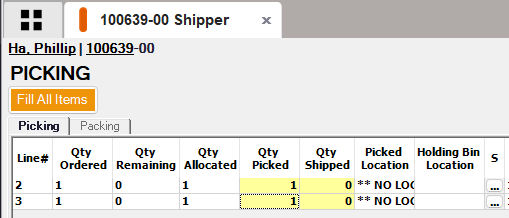
Now that you’re in the shipper depending on how many lines there are you can go ahead and enter in the “Qty Picked” amount.
-
After entering in the Qty picked amount go ahead and also select a holding bin location for the items you’ve picked. Note that at the bottom of the shipper you’re able to select a holding bin and select ALL if there’s multiple lines and they’re all being held at the same place.

-
Once you’ve done this you can go ahead and hit “Post” in the bottom right corner and select “Picked”. You’ve now marked your order as picked and you can move onto the next steps in the shipping process.
